
How do I sign my email?
The following guide shows the entire step-by-step process for creating a signature on your business email. Select the platform you want from the drop-down menu:
Log in to your email via the webmail link provided and follow the steps below:
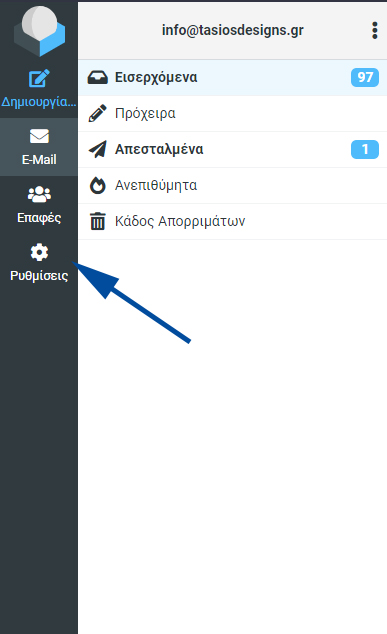
- Select the settings from the menu on the left.
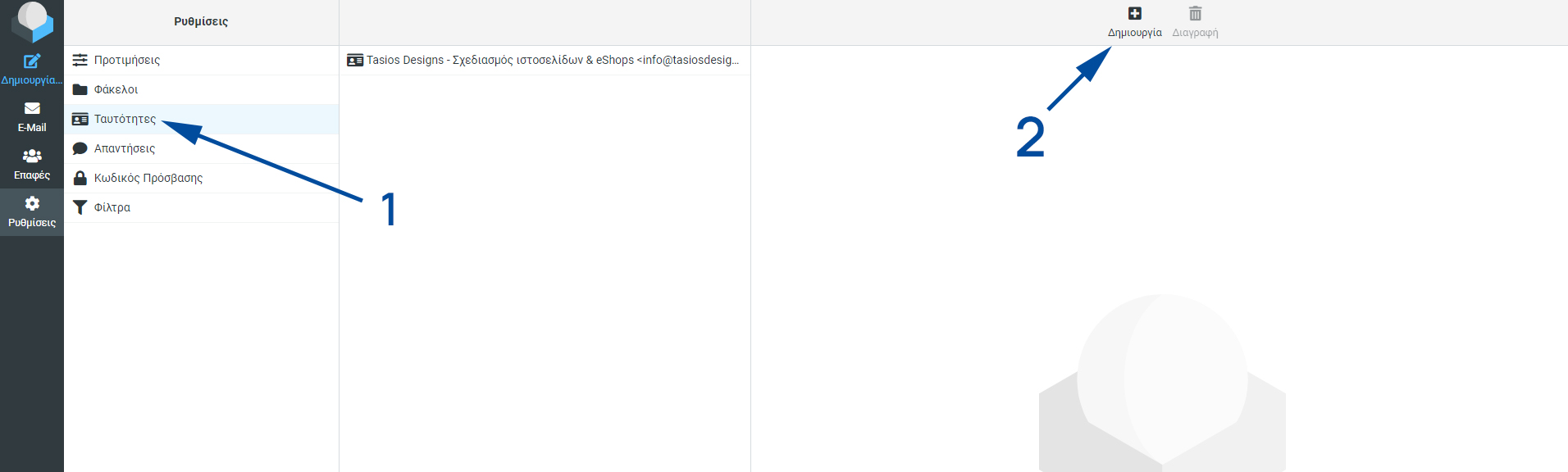
2. Select Identities and then select Create on the right.
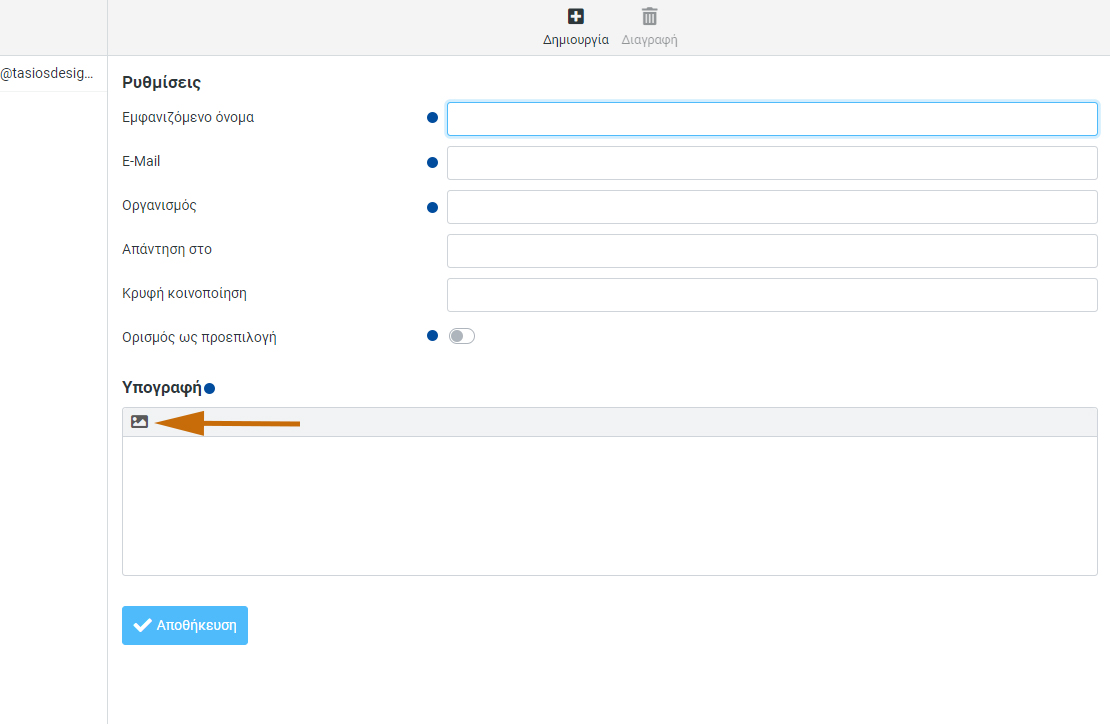
3. Fill in at least the items selected with a blue dot, where:
Display name: This will be the name that will be displayed to the client
Email: your business email
Organisation: the name of your business.
Then you set the identity as the default.
*If you wish to insert links or photos in your signature, you will need to enable HTML mode by clicking the orange arrow, as shown below:
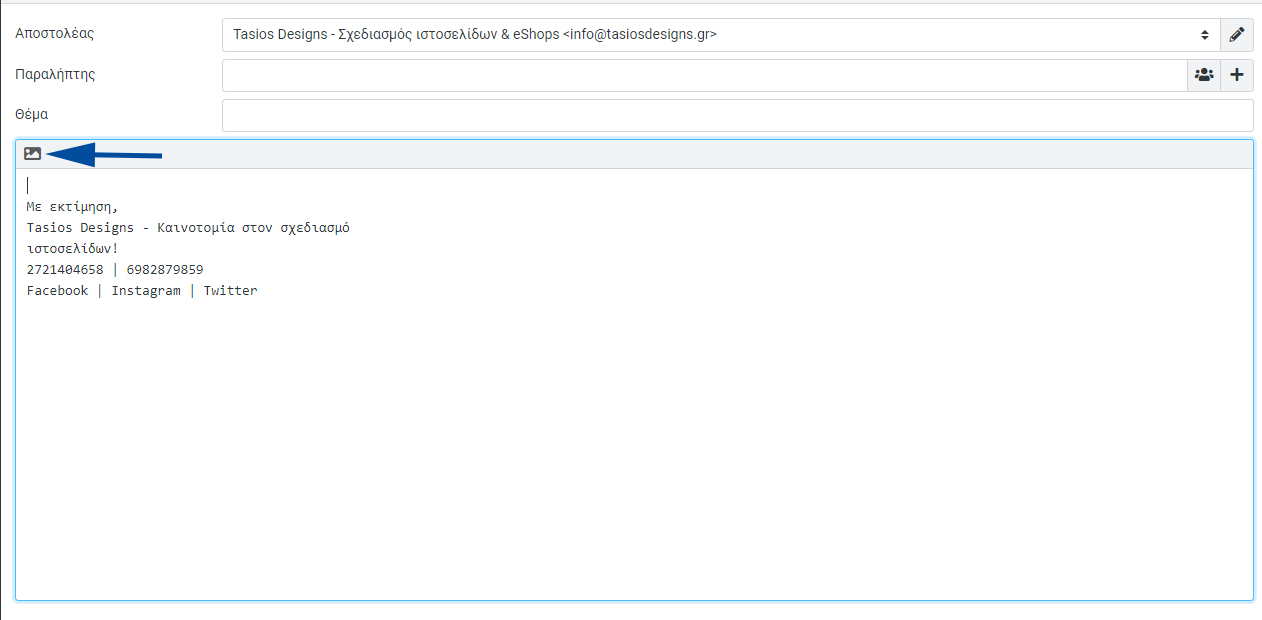
4. Then as you compose the new message you wish to send, your signature will appear at the end.
*If you have put links or photos in your signature, you should also enable the HTML function here, as shown below:
– Additional step –
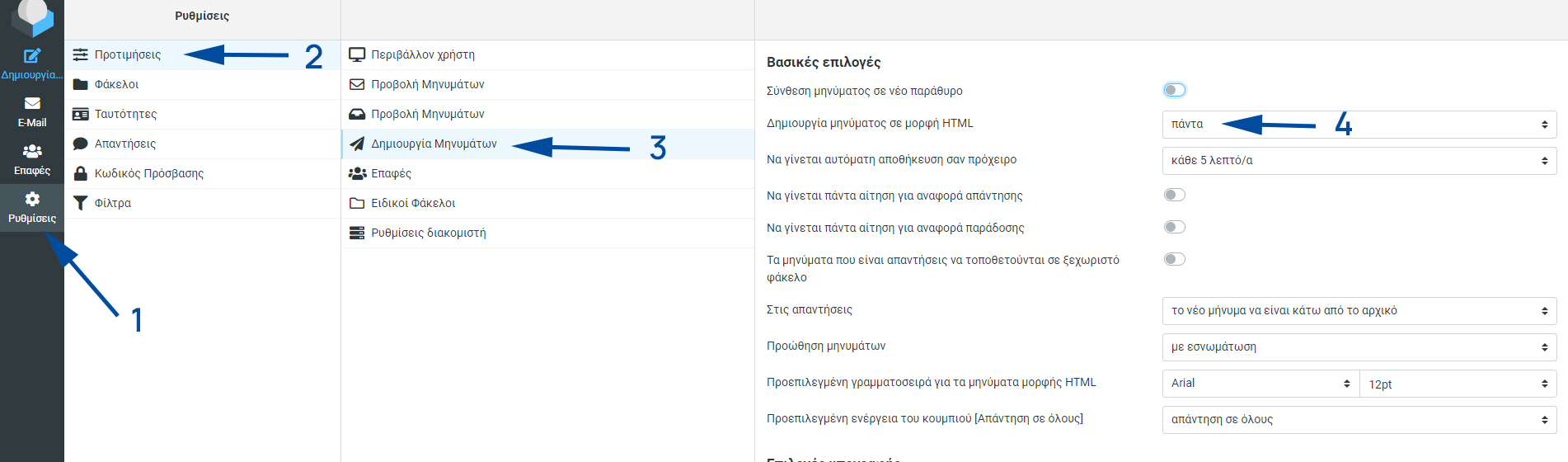
You can permanently enable the HTML function so that you don’t have to click on it all the time. Follow the steps below:
1) Select Settings and then Preferences
2) Create messages and in the HTML message creation you always select.
At Tasios Designs we take care to create innovative and functional websites taking every parameter into consideration. In each of our creations, you express the personality, the goals and the professionalism of each company, through a unique masterpiece designed exclusively for it! Contact us today, get to know us and receive a design quote for your website! Learn more
